
VolPixl Help Center background
Help Center

How Can We Help You?

Find detailed guides, step-by-step instructions, and solutions to common issues while using VolPixl.

Getting Started

Start Using VolPixl with Confidence

Account setup, first uploads, platform basics, and dashboard orientation for new users.

How to Create an Account on VolPixl

Create your workspace and verify your email to begin using VolPixl.

Go to the Get Started page

Enter your full name, work email, and password

Select your organization type

Accept Terms & Conditions

Click Create Account

After signup, you may be asked to verify your email.
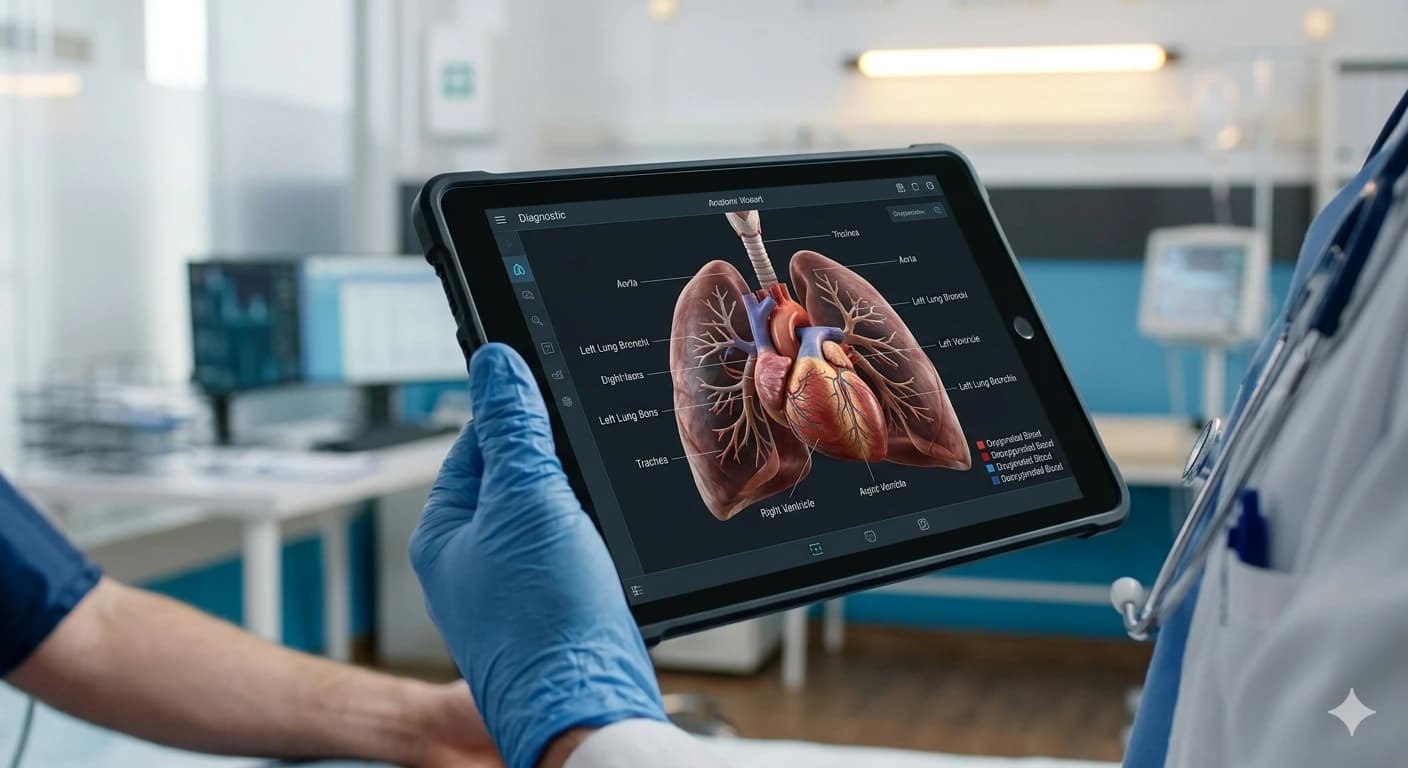
Getting Started with the Platform

Use the dashboard to upload, process, and review your first imaging workflow.

Access your Dashboard

Upload your first image

Choose enhancement or processing options

Run the workflow

The platform is designed to guide you step-by-step.

Uploading Your First Image

Upload DICOM or supported imaging files from the dashboard.

Go to Dashboard -> Upload

Select a DICOM or supported format

Click Upload

Wait for confirmation

Large files may take more time depending on size.

Understanding the Dashboard

Use the dashboard as your central control panel for core workflows.

Upload section

Processing status

Recent activity

API usage if enabled

It acts as your central control panel.

Platform & Features

Use Core Imaging Features

Learn how enhancement, visualization, pipelines, and exports work inside VolPixl.

How Image Enhancement Works

VolPixl uses AI models to improve image resolution, reduce noise, and enhance clarity.

Processing is automated and optimized for quality.

Using the Visualization Engine

View images in 2D and 3D, zoom and rotate, and explore multiple views.

This helps teams better understand imaging data.

Running the Processing Pipeline

Upload an image, select the processing type, run the pipeline, and track progress in real time.

You can monitor completion from the dashboard.

Exporting Processed Images

After processing, click Download or Export, choose a format, and save the result.

Exports are available after the workflow completes.

Developers & API

Build and Debug API Workflows

Generate API keys, make your first request, understand responses, and manage async image processing flows.

Example Request

POST /images/enhance
Authorization: Bearer YOUR_API_KEY

How to Get API Access

Follow this guide to keep your developer workflow predictable.

Login to your account

Go to Developer Dashboard

Generate API Key

Keep your API key secure.

Making Your First API Request

Follow this guide to keep your developer workflow predictable.

POST /images/enhance

Authorization: Bearer YOUR_API_KEY

Send image -> process -> receive output

Use the API reference for request and response details.

Understanding API Responses

Follow this guide to keep your developer workflow predictable.

Status: success or error

Data: output image or metadata

Job ID for tracking

Async jobs use the job ID to retrieve results.

Handling Async Processing

Follow this guide to keep your developer workflow predictable.

Submit request

Get job ID

Check status

Retrieve result

Use async processing for large files and longer workloads.

Account & Security

Keep Your Account Secure

Resetting Your Password

Click Forgot Password

Enter your email

Check email for reset link

Set new password

Managing Account Settings

Name

Organization

Password

Preferences

Security Best Practices

Use strong passwords

Do not share API keys

Log out from shared devices

Reset password
Billing & Pricing

Manage Plans and Billing

Understanding Pricing Plans

Processing credits

Features

API access

Upgrading Your Plan

Go to Pricing Page

Select plan

Complete payment

Billing & Invoices

Monthly billing cycle

Download invoices from dashboard

View pricing
Troubleshooting

Resolve Common Issues

Use these checks when upload, processing, API, or visualization workflows do not behave as expected.

Upload Failed

Possible reasons

Unsupported file format

File too large

Network issue

Try

Re-upload

Check format

Reduce file size

Processing Taking Too Long

Possible reasons

Large file size

High system load

Complex processing

Try

Wait or check job status

Use batch processing

API Not Working

Possible reasons

API key validity

Request format

Endpoint URL

Try

Check credentials

Validate payload

Confirm endpoint path

Visualization Not Loading

Possible reasons

Browser issue

Large dataset

Network lag

Try

Refresh page

Use an updated browser

Popular Articles

Frequently Used Guides

How to enhance an image step-by-step

Supported file formats

API integration basics

Processing delays explained

VolPixl support and clinical workflow

Contact Support

If Your Issue Is Not Resolved

Address

Connaught Place, New Delhi

Support Response Time

Standard: 24-48 hours. Priority support is faster for paid plans.

System Support

Submit a Request

Support CTA

Need Immediate Assistance?